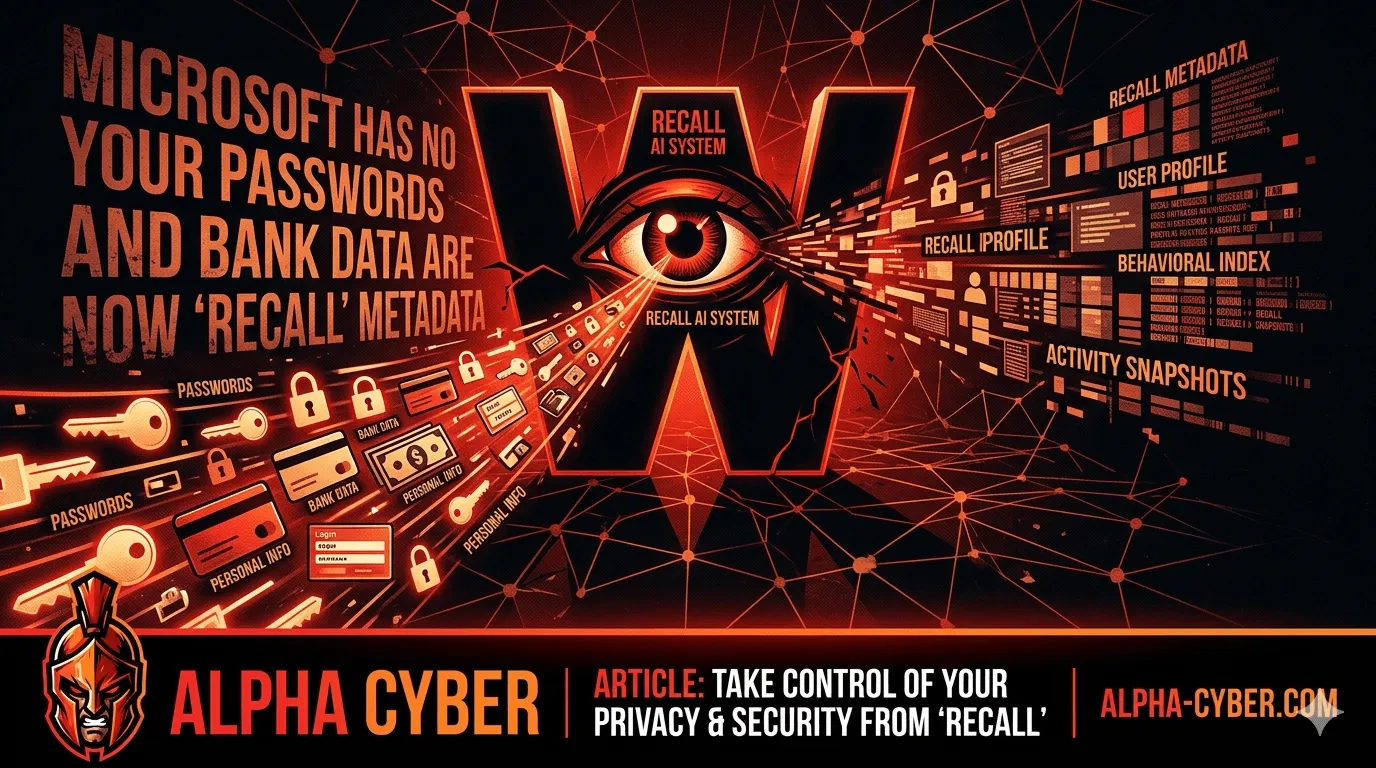
Microsoft Has No Shame: Your Passwords and Bank Data are Now “Recall” Metadata
At Alpha Cyber, we prioritize keeping you informed about the latest digital threats.
Microsoft Recall Still Exposing Passwords and Financial Data
At Alpha Cyber, we prioritize keeping you informed about the latest digital threats. Recent investigations into Microsoft’s controversial AI tool, Recall, have revealed that it is failing to protect highly sensitive user information even with newly implemented security “filters” active.
Despite promises of robust encryption and AI-driven privacy, the feature continues to capture snapshots of plain-text passwords, Social Security numbers, and banking details.
What is Microsoft Recall?
Recall is an AI-powered feature for modern PCs that takes snapshots of your screen every few seconds. This creates a searchable “photographic memory” of everything you’ve done on your computer. While the goal is convenience, the reality is a significant security liability.
The Reality: “Sensitive Information” is Still Being Captured
A “Sensitive Information Filter” was introduced to automatically detect and redact data like credit card numbers and passwords. However, real-world tests show the filter is dangerously inconsistent:
Financial Data: While the filter successfully blocked some routing numbers, it still captured full credit card numbers, expiration dates, and bank account balances.
Password Vulnerabilities: The tool successfully ignored passwords in certain password managers but captured credentials written in plain text files or internal apps that didn’t explicitly use the word “password.”
Identity Risks: Social Security numbers (SSNs) were often captured if they weren’t prefixed with specific, recognizable labels.
Remote Access Bypass: Alarmingly, researchers found that using remote access tools could allow an attacker to bypass biometric requirements and view the entire history using only a simple PIN.
The Verdict: If a hacker gains access to your device, this feature essentially provides them with a meticulously organized, months-long history of your digital life including the keys to your financial accounts.
How to Protect Your Data: Mitigation Steps
Our recommendation for most users and businesses is to disable this feature entirely until the technology matures. If you must use it, follow these critical steps:
1. Disable Snapshots via Windows Settings
If you are using a compatible PC, ensure the feature is turned off:
Go to Settings > Privacy & Security > Recall & Snapshots.
Toggle Save Snapshots to Off.
Click Delete All to wipe any existing history already stored on your drive.
2. Use Group Policy (For Businesses)
For organizations managing multiple devices, IT admins should disable the feature at the tenant level. This prevents employees from accidentally opting in and creating a data compliance nightmare. Use management tools to set the policy to Disabled.
3. Strict Application Filtering
If your workflow requires these snapshots, you must manually add sensitive applications to the “exclusion list.” Ensure that banking apps, password managers, and internal databases are explicitly blocked from being recorded.
4. Enforce Enhanced Sign-In Security
Ensure Enhanced Sign-in Security is active. This tethers your biometric data to the hardware’s security chip, making it harder for malware to spoof your identity to access the stored database.
5. Adopt “In-Private” Browsing for Sensitive Tasks
The recording feature is designed to ignore “InPrivate” or “Incognito” sessions in supported browsers. Always use these modes when accessing banking portals or sensitive corporate intranets.
Is Your Business At Risk?
At Alpha Cyber, we help organizations navigate the complex intersection of AI productivity and data security. We can audit your fleet of devices to ensure sensitive data isn’t being silently recorded.
Contact us today for a security audit to verify your organization’s data remains private.