
Connecting Securely To Tor Network
The internet is a powerful tool, but privacy isn’t something you should take for granted. The Tor network is one of the best ways to browse anonymously, masking your identity and location online.
How to Connect to the Tor Network Securely
The internet is a powerful tool, but privacy isn’t something you should take for granted. The Tor network is one of the best ways to browse anonymously, masking your identity and location online.
Let’s dive into what Tor is, how it works, and how you can safely connect to it using a virtual machine for an extra layer of protection.
What is Tor and How Does It Work?
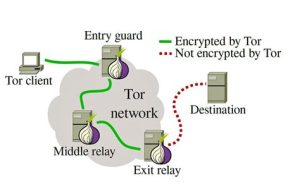
Tor (The Onion Router) was originally developed in the mid-1990s by the United States Naval Research Laboratory to enable anonymous communication. It works using the onion routing method, meaning:
Your internet traffic is encrypted and routed through multiple volunteer-run servers (called nodes) before reaching its destination.
Each node only knows the previous and next hop, not the full path or your identity.
This makes it difficult for anyone to trace your connection from source to destination.
Note:
Tor isn’t foolproof. Security breaches exist, and intelligence agencies like the FBI and NSA reportedly operate honeypot servers to monitor illegal activity. Use it wisely and responsibly.
Setting Up a Secure Tor Environment
For extra protection, it’s a good idea to use Tor within a virtual machine (VM). This isolates your browsing activity from your main operating system, a smart, added layer of security.
What You’ll Need:
Ubuntu Desktop: Download here
VirtualBox: Download here
Once installed, proceed with setting up the Tor service inside your VM.
Installing Tor on Ubuntu (VM)
Follow these steps in your Ubuntu virtual machine terminal:
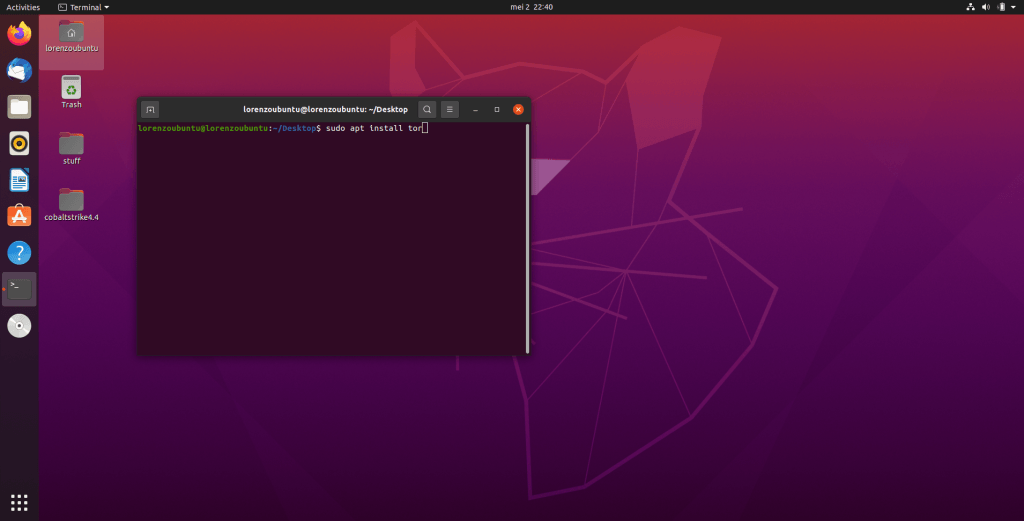
Install the Tor service:
sudo apt install tor
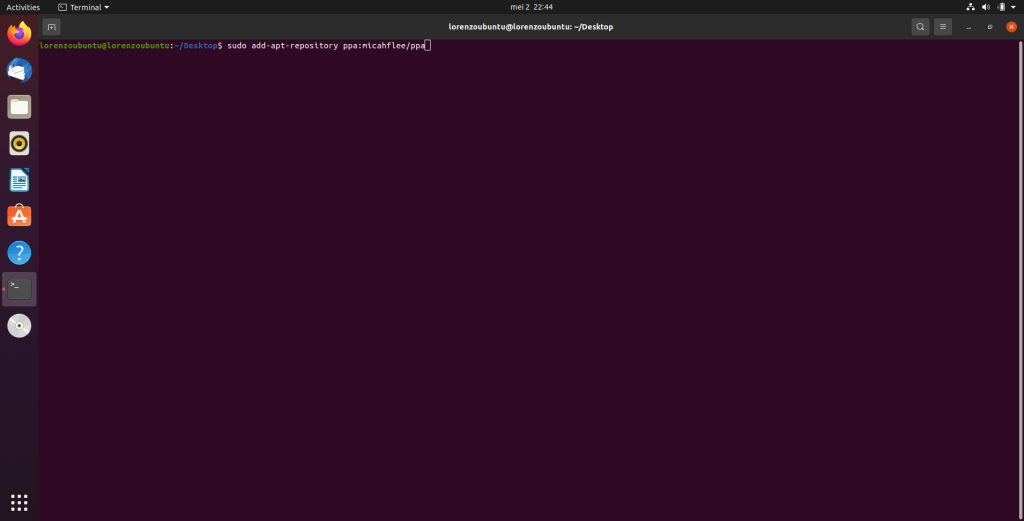
Add the official Tor repository:
sudo add-apt-repository ppa:micahflee/ppa
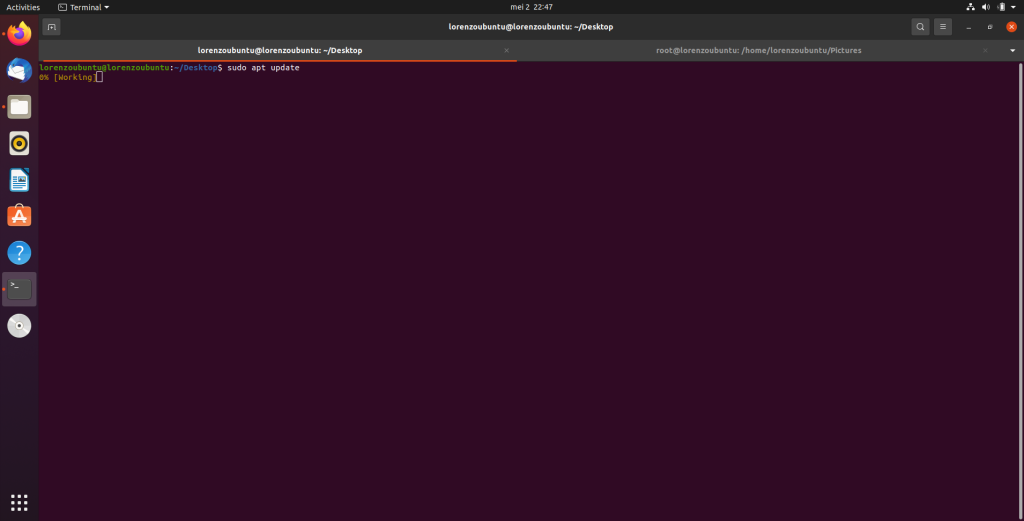
Update your package list:
sudo apt update
Install the Tor Browser Launcher:
sudo apt install torbrowser-launcher
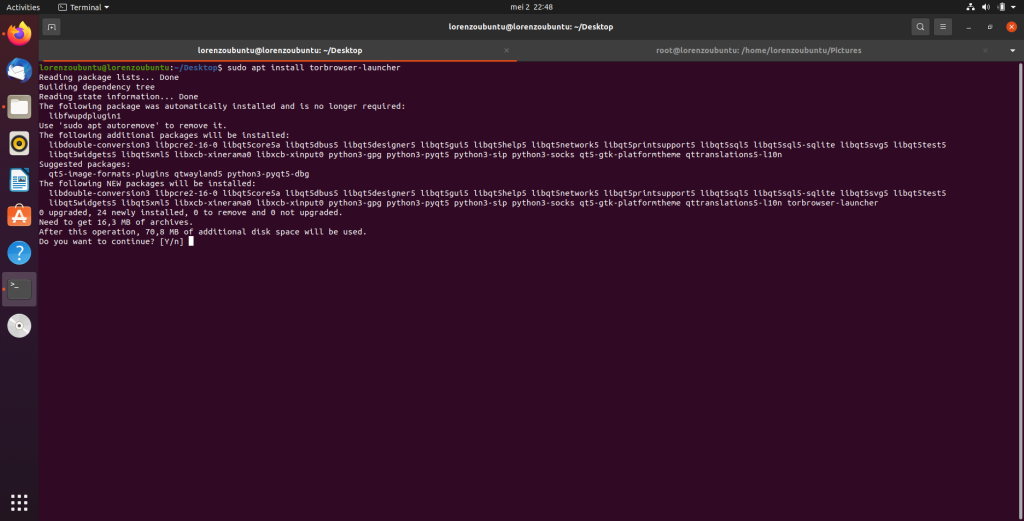
Launch the Tor browser:
torbrowser-launcher
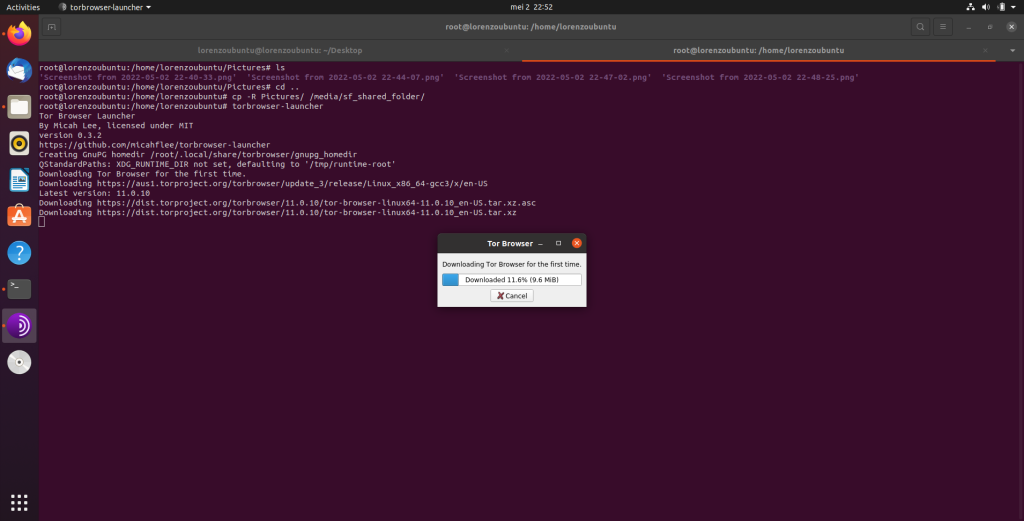
Configuring Tor Browser for Maximum Security
After launching the Tor browser:
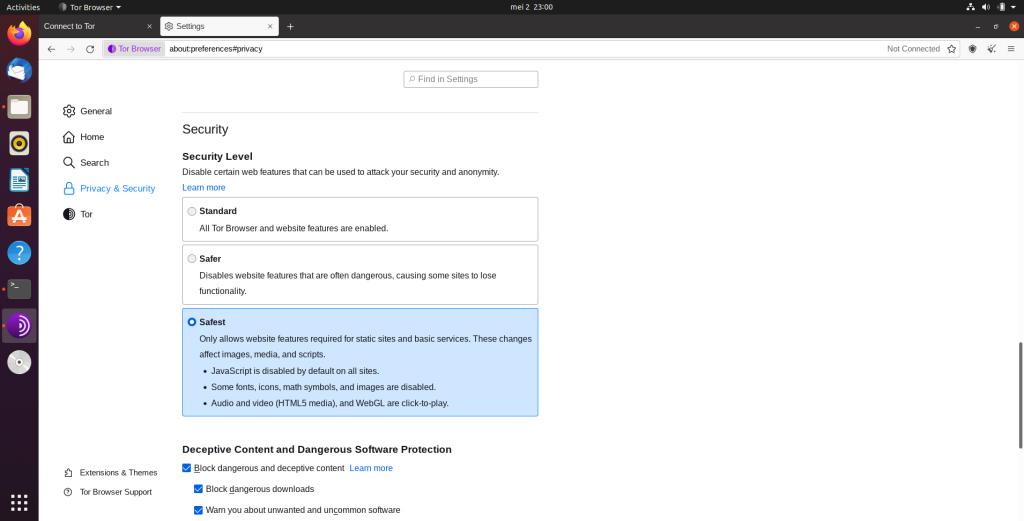
Go to Settings → Privacy & Security

- Set Security Level to Safest
Enable “Block dangerous content”
Scroll down and turn on HTTPS-Only Mode in all windows
This ensures you’re browsing with maximum privacy and protection.
- connect into the tor network


Final Thoughts
That’s it, you’re now connected to the Tor network through a secured virtual machine environment.
Remember:
While Tor boosts anonymity, it’s not bulletproof. Always stay cautious, avoid shady websites, and never trust that you’re fully invisible online.
📚 Recap
✔️ Use a virtual machine to isolate your Tor activity
✔️ Install and configure Tor via terminal on Ubuntu
✔️ Adjust security settings in the Tor browser for maximum privacy
✔️ Be aware of honeypots and security risks on the network
Browse anonymously, stay smart, and have fun exploring the web safely.